Amitrax Student Portal
Introduction
This document serves as a comprehensive guide for students, aimed at facilitating their understanding and effective utilization of the Learning Management System (AMITRAX). In an increasingly digital education landscape, mastering the AMITRAX is essential for accessing course materials, submitting assignments, engaging in discussions, and tracking academic progress. Within this guide, students will find step-by-step instructions, practical tips, and troubleshooting advice, ensuring that they can navigate this digital platform with confidence and harness its full potential to enhance their learning experience. This document is your go-to resource for making the most of this essential tool on your educational journey.
Login |
|
|
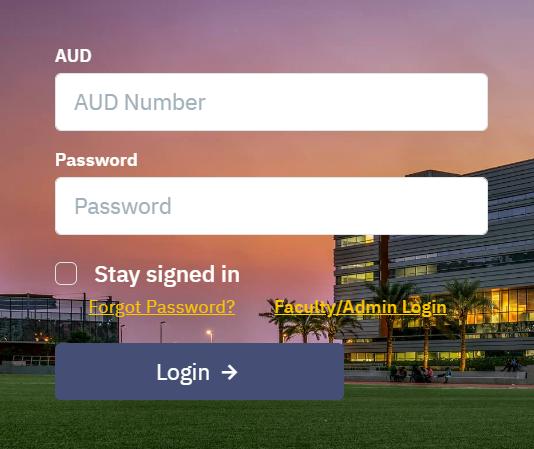
To enter the Amitrax AMITRAX Student Portal, student members are required to log in by using their AUD No. / Student No. and corresponding passwords, which remain unchanged if no password reset has been initiated within the system. This information is identical to the credentials used for AMS login. |
|
Student Dashboard |
|
|
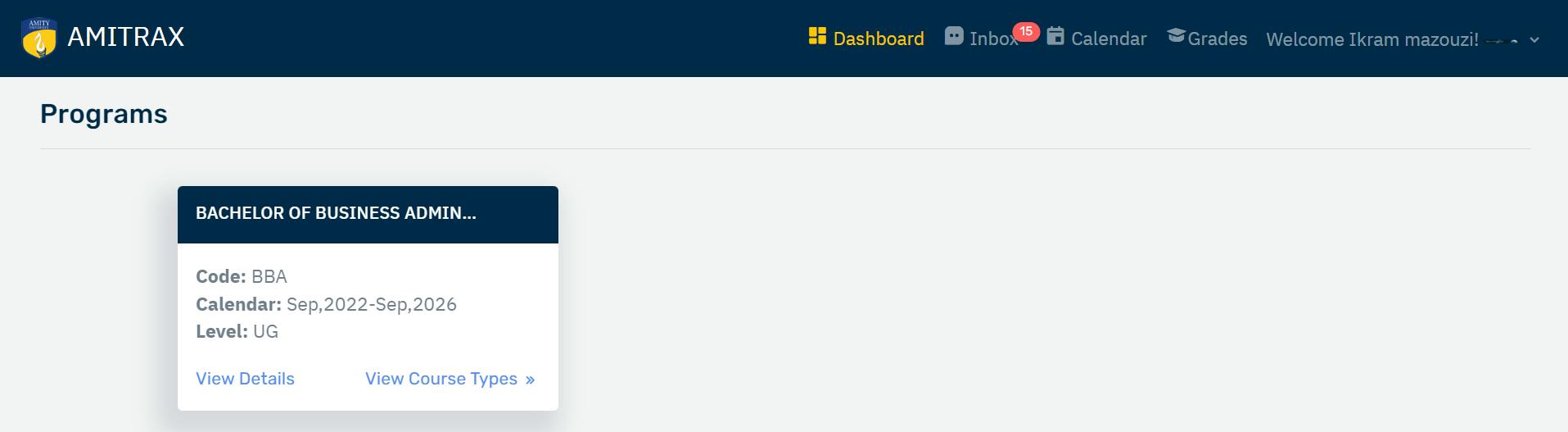
Once students have successfully logged in to the Amitrax AMITRAX Student Portal, they will be automatically directed to their personal dashboard, where they can access and view the details of the programs in which they are enrolled. |
|
|
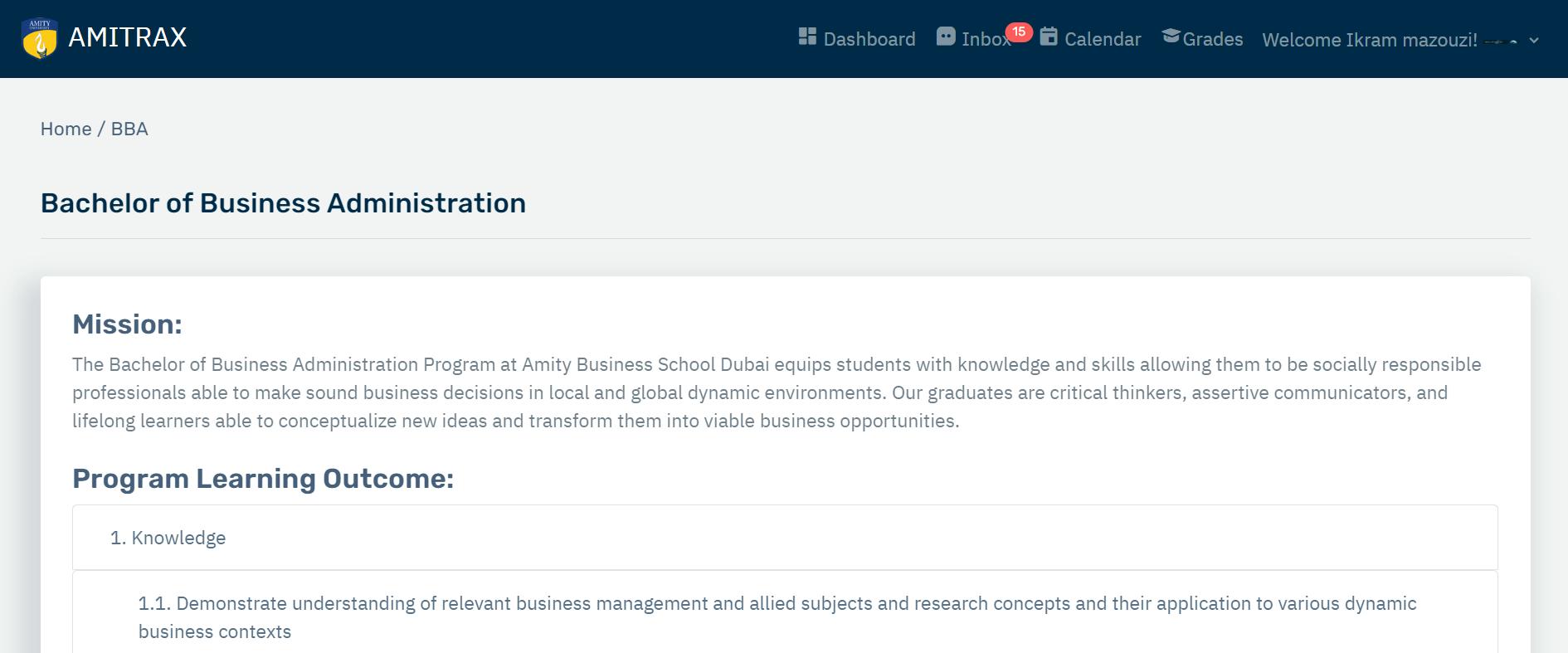
To explore the program's learning outcomes, simply click on the "View Details" option. This will provide you with in-depth insights into the educational objectives and expectations of the program. |
|
|
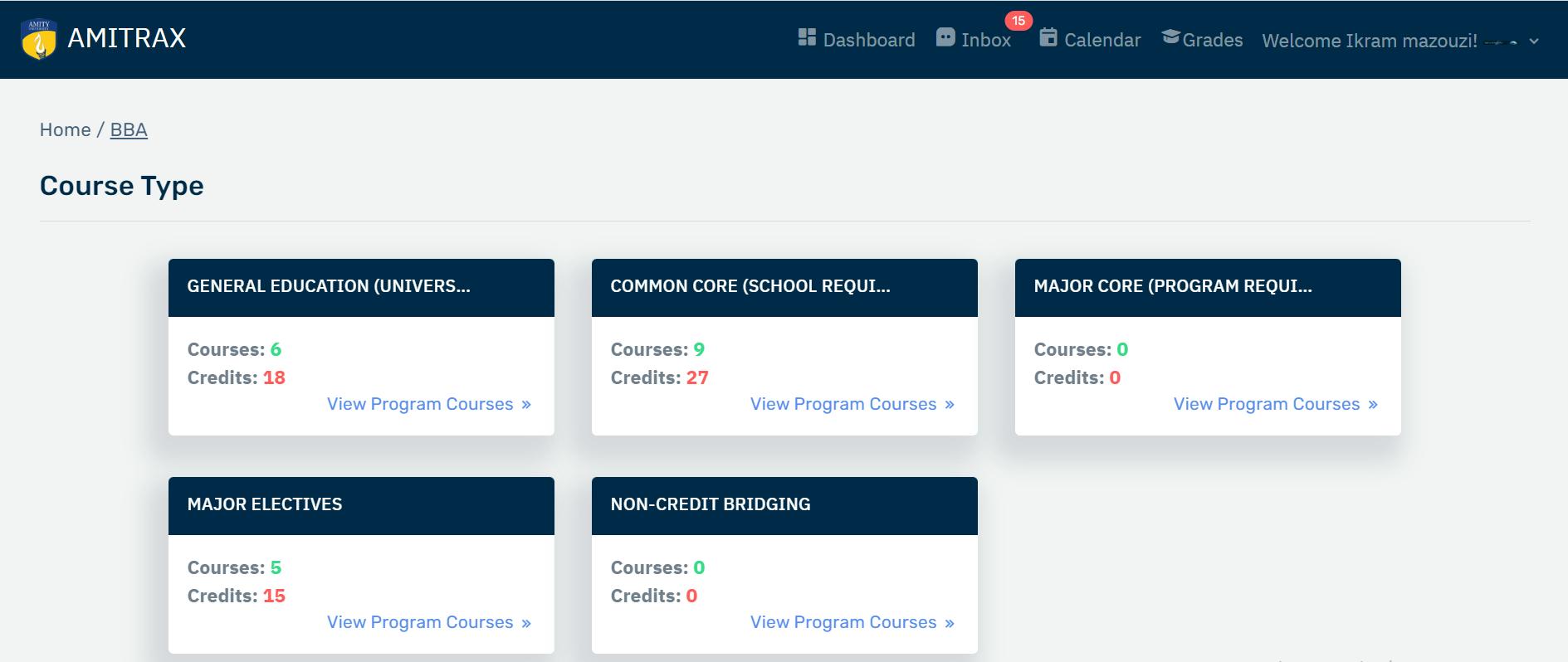
By clicking on "View Course Type", you can access comprehensive information about courses categorized by type. This feature allows you to gain a holistic view of the courses available within each specific category. |
|
Program Course Page |
|
|
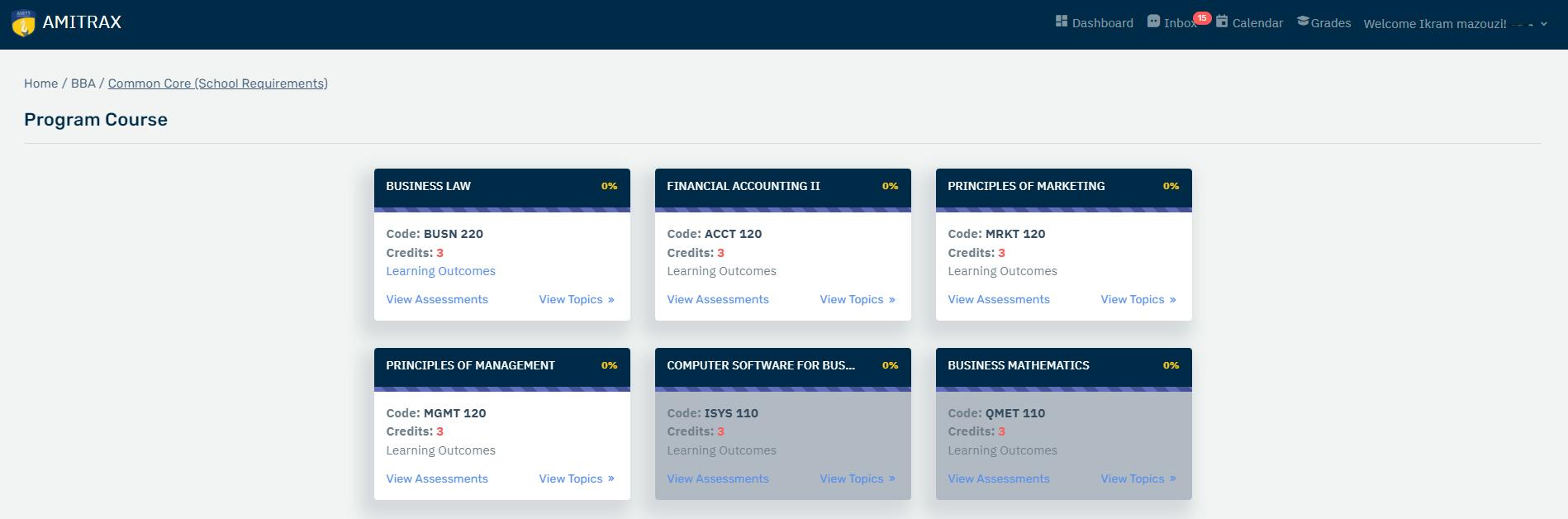
To explore courses within a specific category, click on "View Program Course". This action will redirect you to another view where all allocated courses are visible. Accessible cards are those without overlays, and within each card, students can track their course progress effectively. For each allocated course listed within the program, you will find a wealth of information on the course listing card, including:
|
|
Topic Page |
|
|
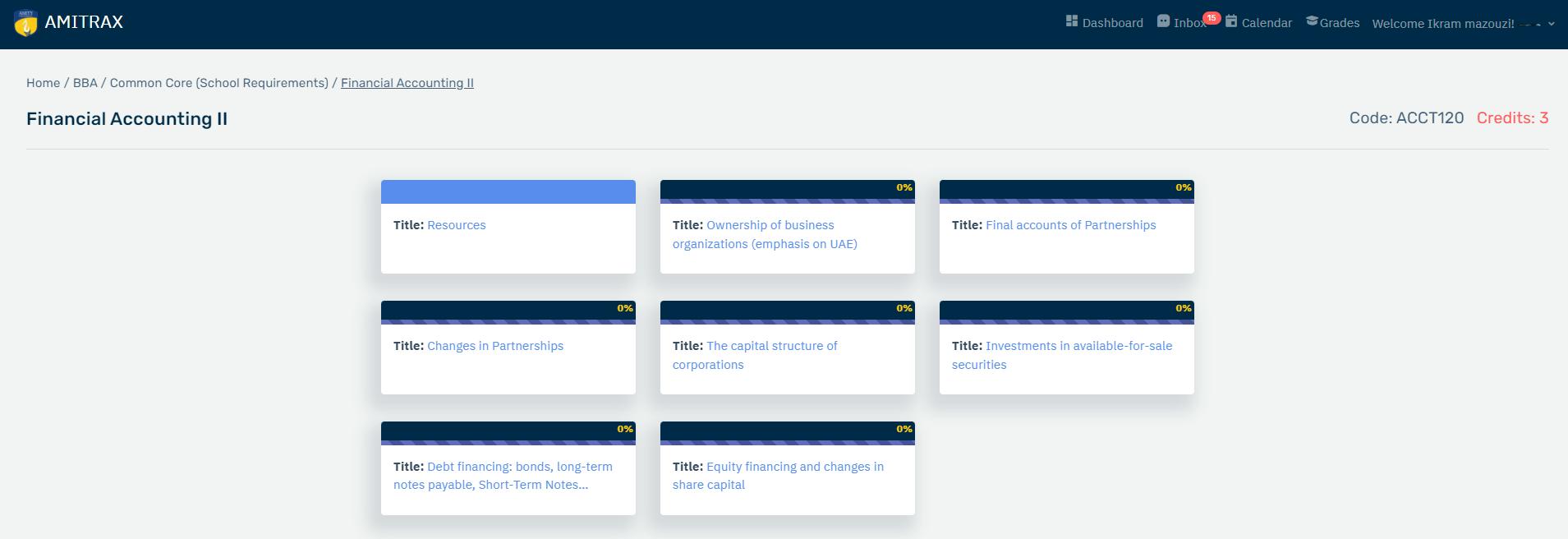
When you click on "View Topics" you will be directed to a dedicated page that showcases a list of topics added by the faculty for the respective course. Click the card to explore the content of each topics. |
|
Content Page |
|
|
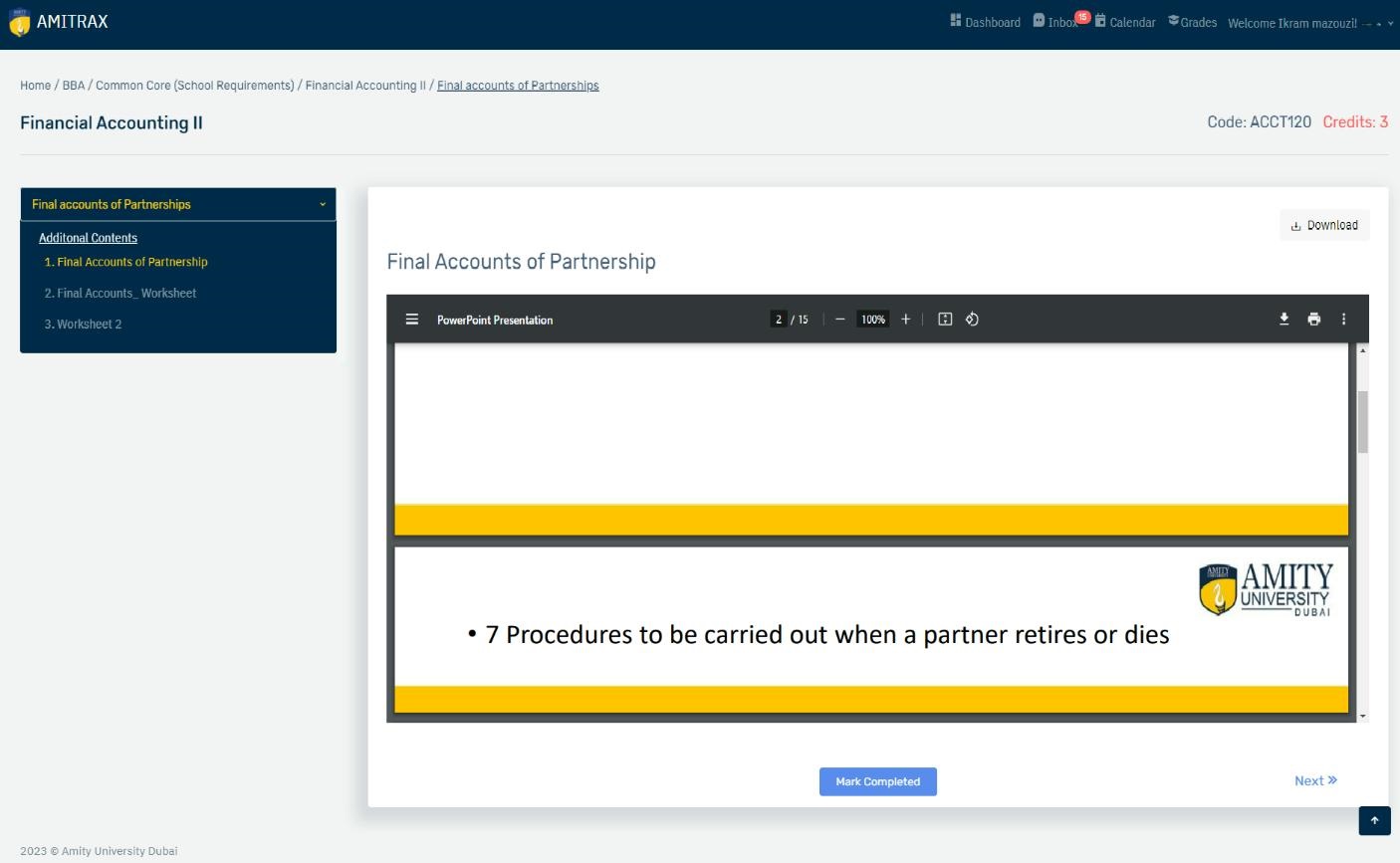
Within the content page, students are required to review the provided course materials. Advancing to the next content is only possible after marking the current content as completed, ensuring progress is made. This method enables students to monitor their course and topic-specific progress at a later stage. |
|
Assessment Page |
|
|
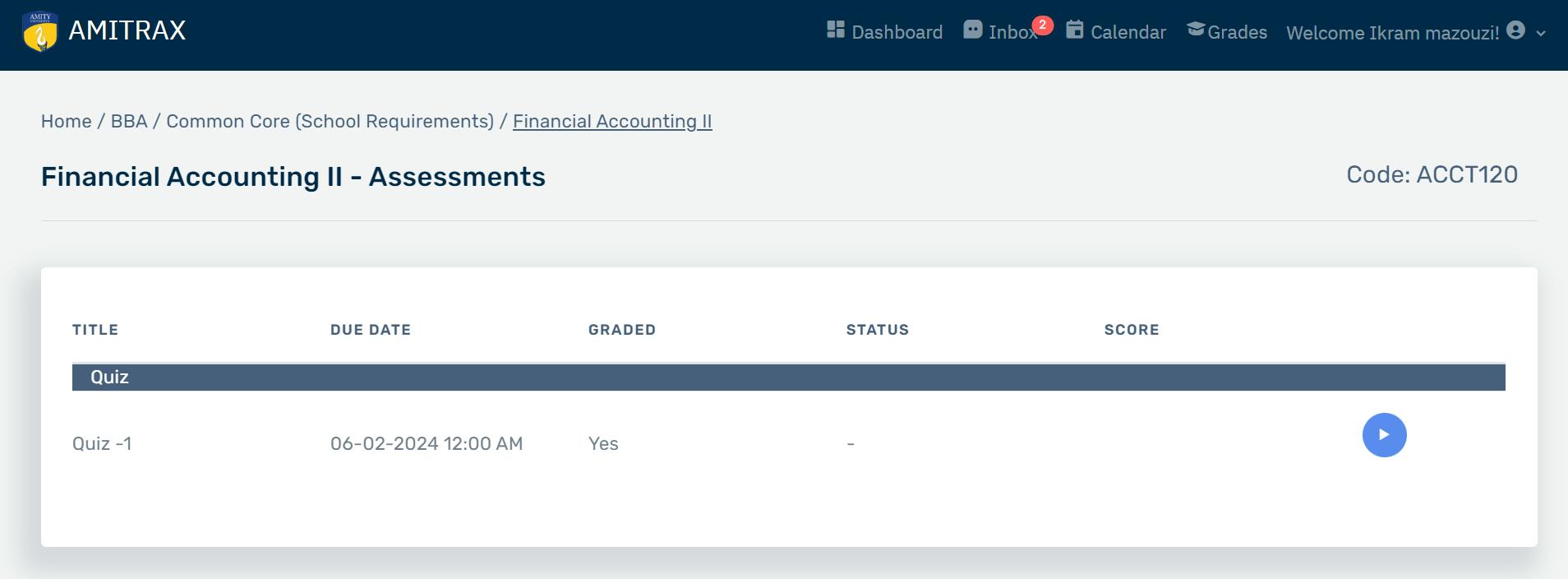
Selecting 'View Assessment' within the Program Course Page will lead you to a view displaying a list of assessments. To access an assessment overview, click on the blue button featuring a right-arrow symbol. |
|
|
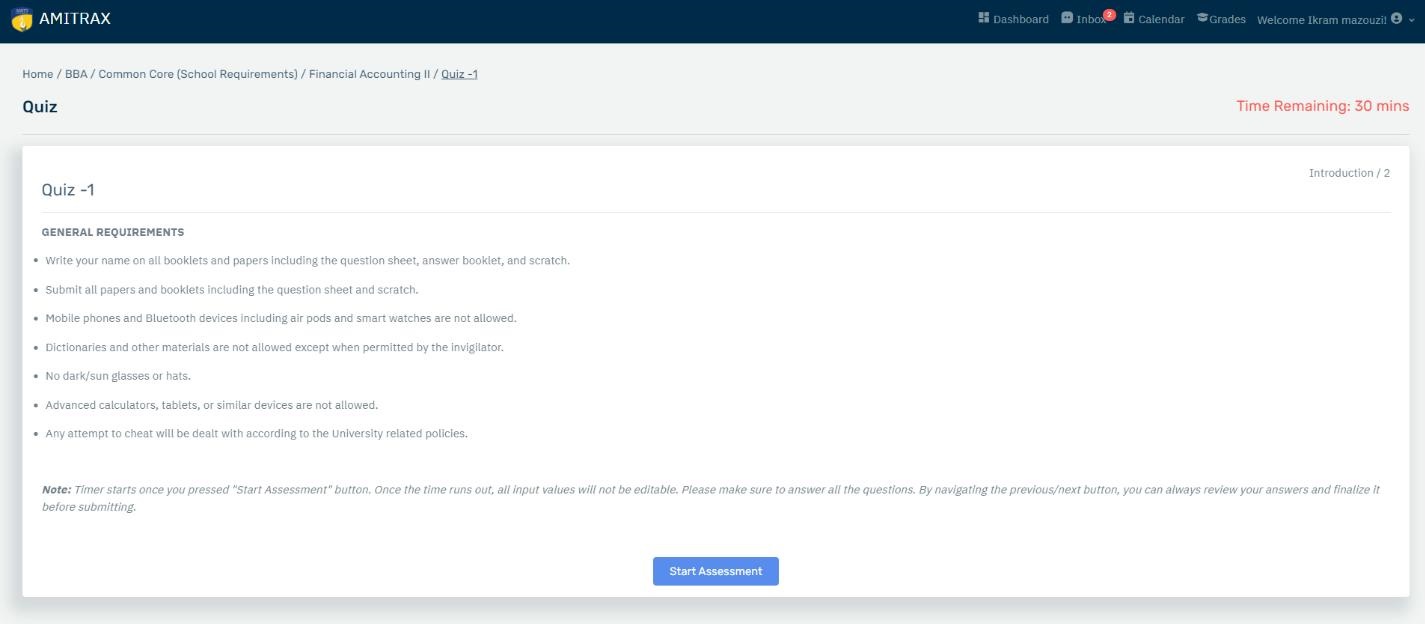
To initiate an assessment, click the 'Start Assessment' button. It's important to be aware that certain assessments may be subject to time limits. Commencing the assessment triggers the timer, and upon reaching the time limit, the assessment will automatically conclude. |
|
|
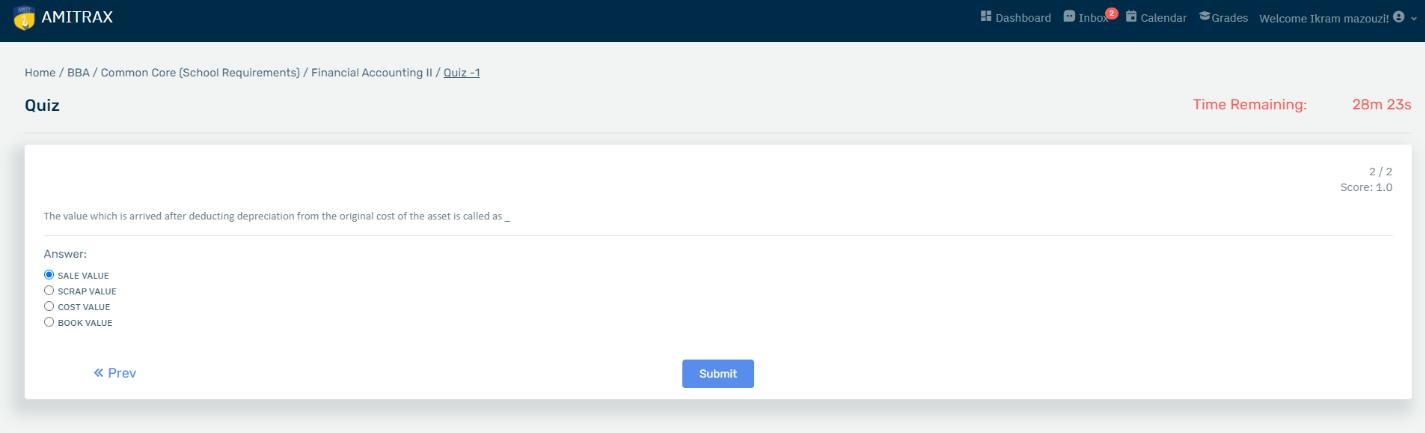
Once all questions have been answered, students have the option to review their responses by using the 'Previous' button below. To conclude your assessment, click the 'Submit' button. After completion, faculty members will evaluate your work and assign a grade to your assessment. |
|
|
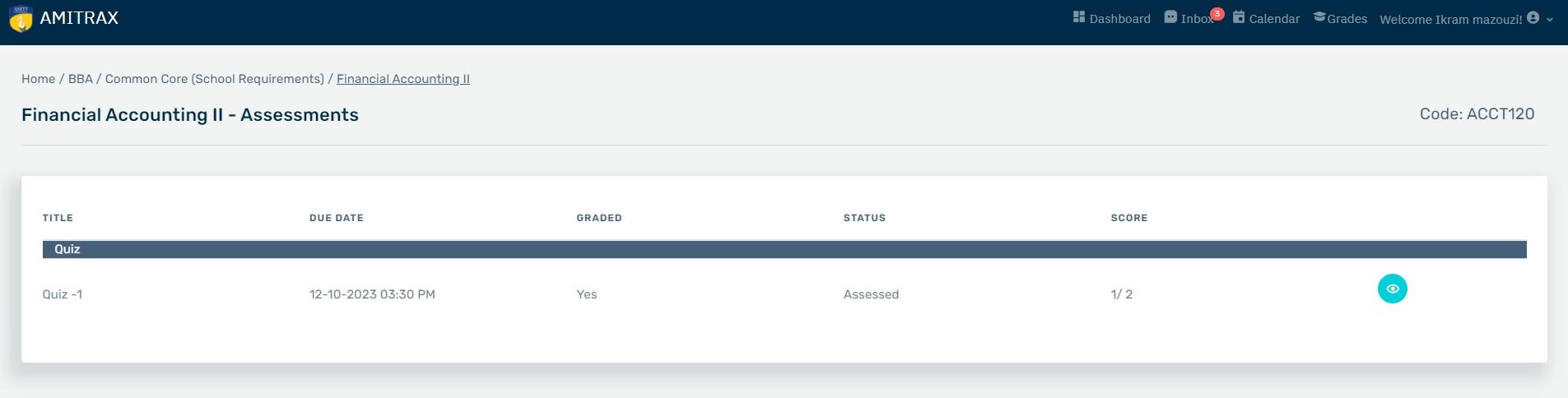
Returning to the list, you can observe the status of your assessment. Below are the respective status: 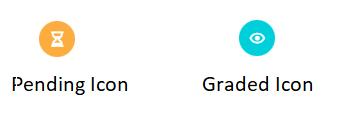
|
|
|
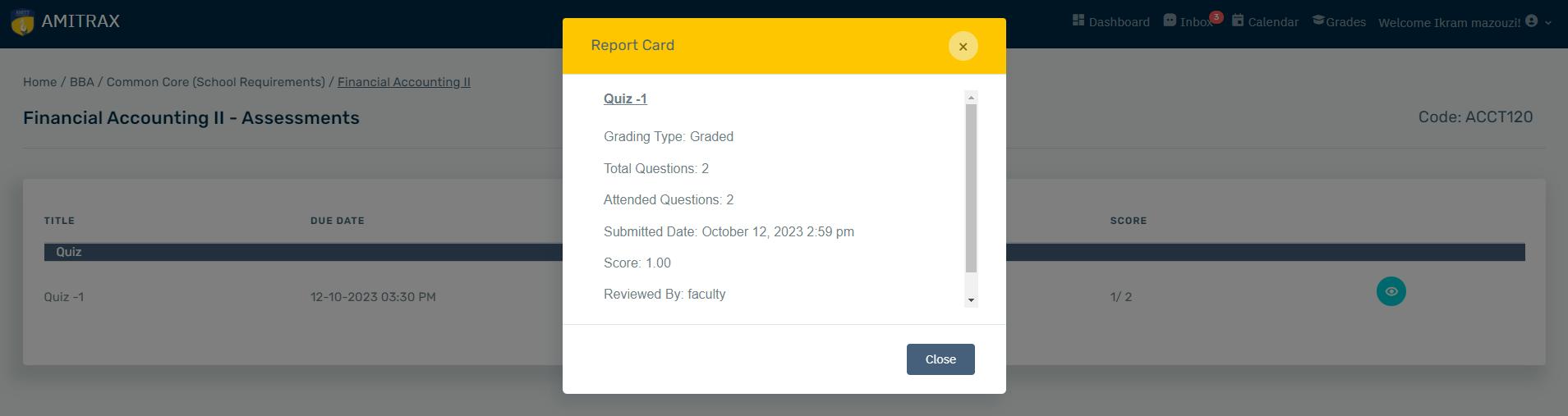
Upon the status changing to 'Graded,' you can likewise click the button to access the report card. |
|
Additional Features on Menu |
|

|
|
|
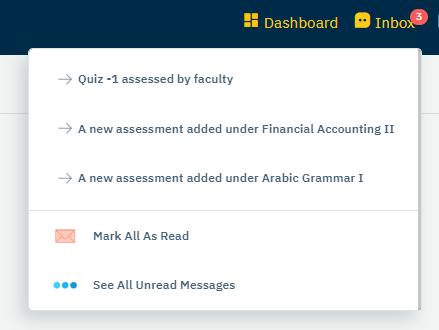
Inbox – Contains notifications and important announcemnt from faculty. Click ‘See All Unread Messages’ for better view. |
|
|
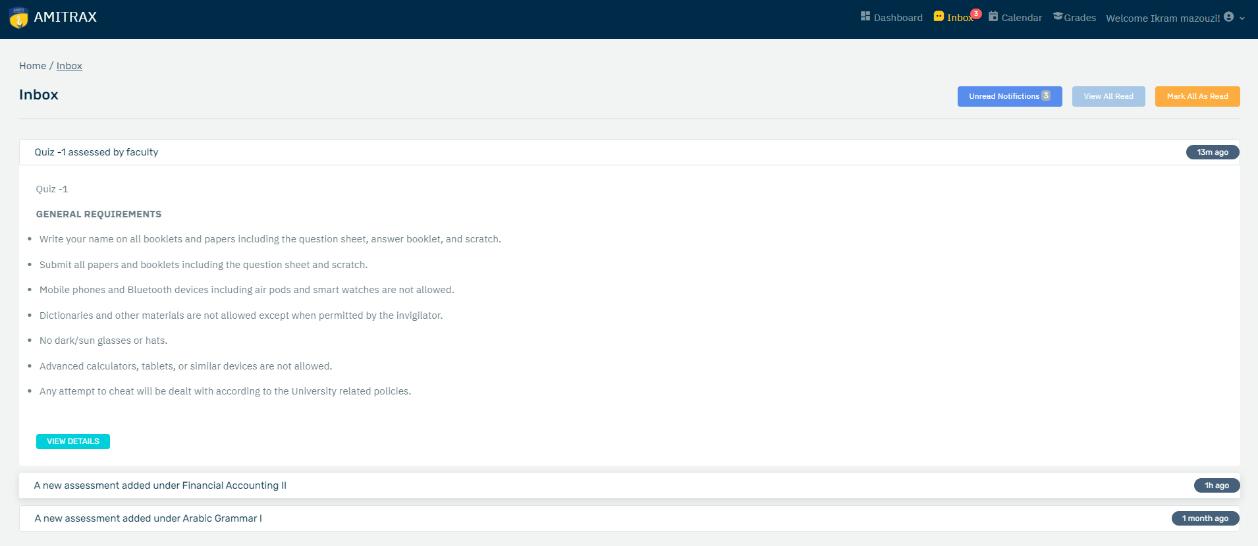
Click ‘Mark as Read’ to remove notifications. You can always go back and review that notifcation by clicking that ‘View All Read’ Button. |
|
|
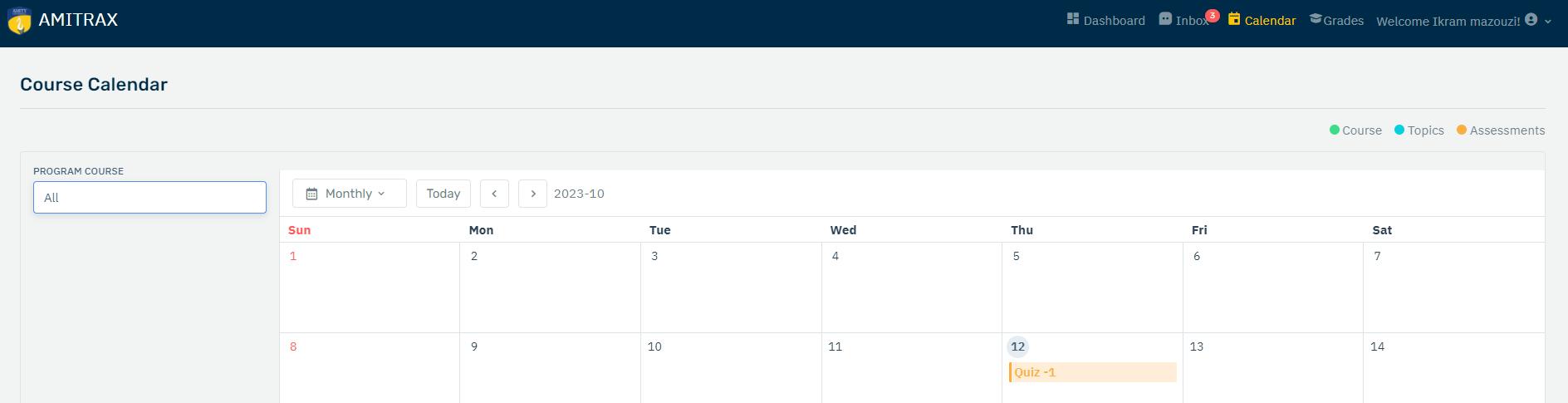
Calendar – Accessing the calendar allows you to keep track of your assessment deadlines. |
|
|
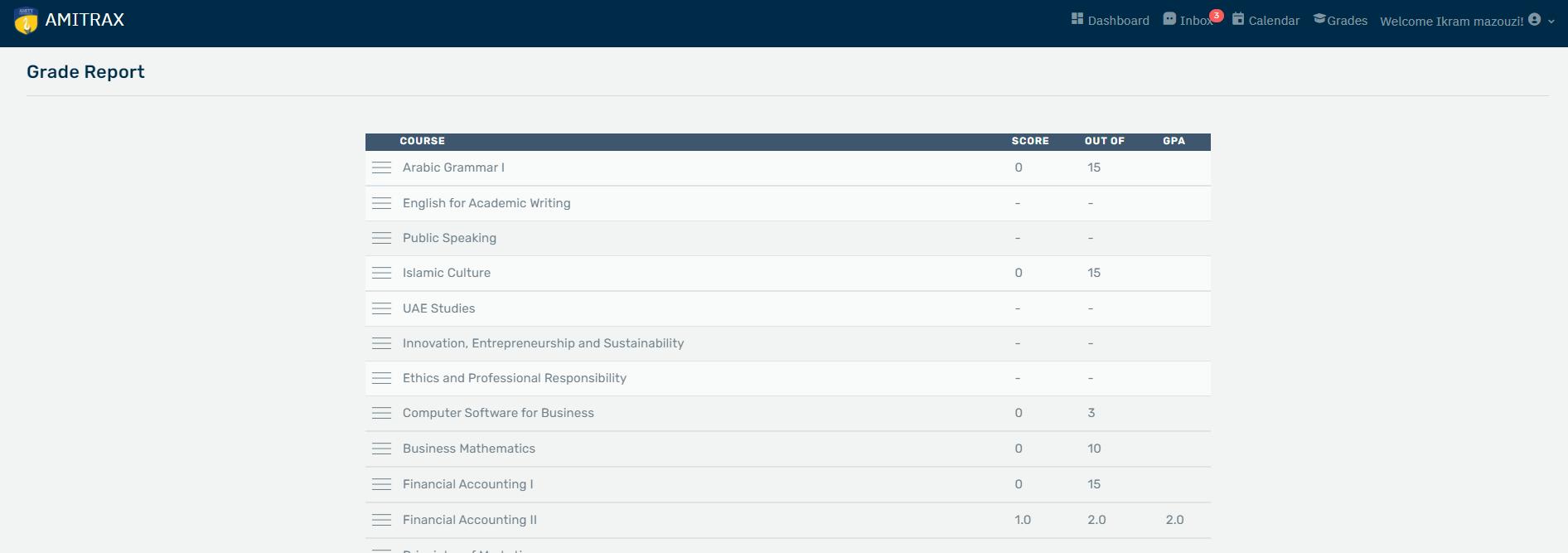
Grades – It contains the grades for each course, offering a convenient and quick way to monitor your academic performance. |
|
|
User Settings |
|
|
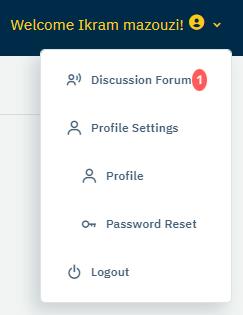
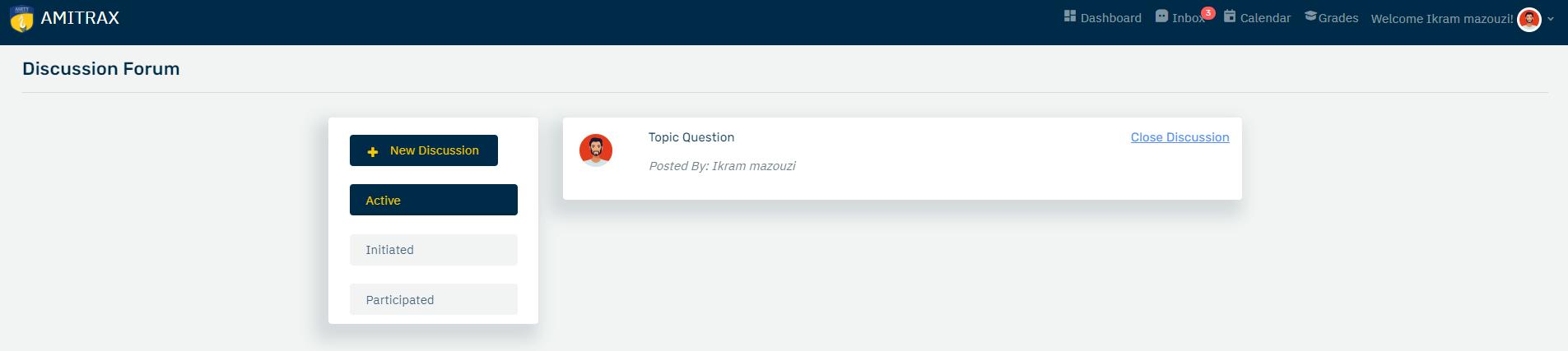
Discussion Forum - Students have the option to initiate discussions for the purpose of seeking clarifications and addressing any additional activities that require further discourse. |
|
|
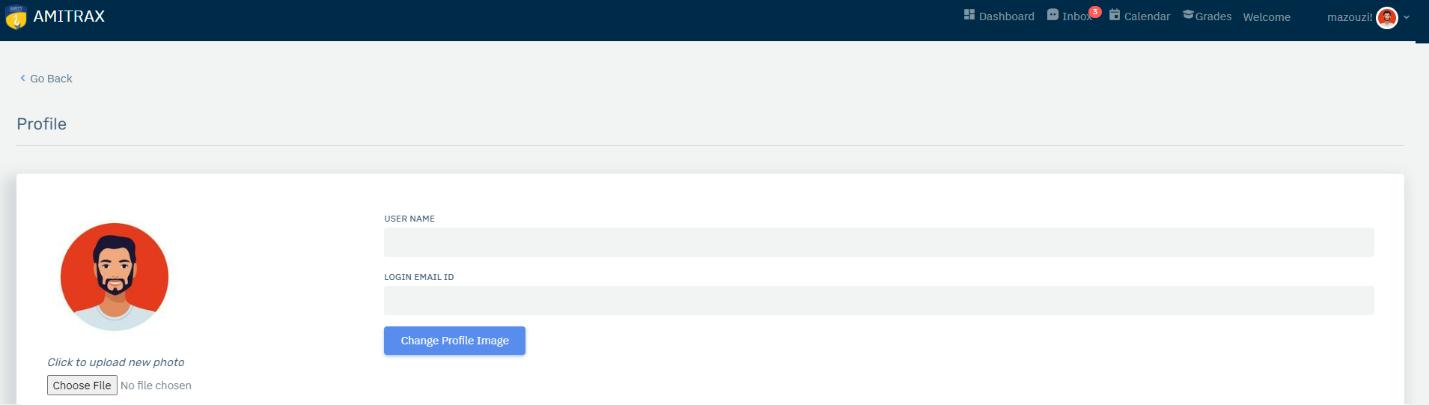
Profile Settings - Profile |
|
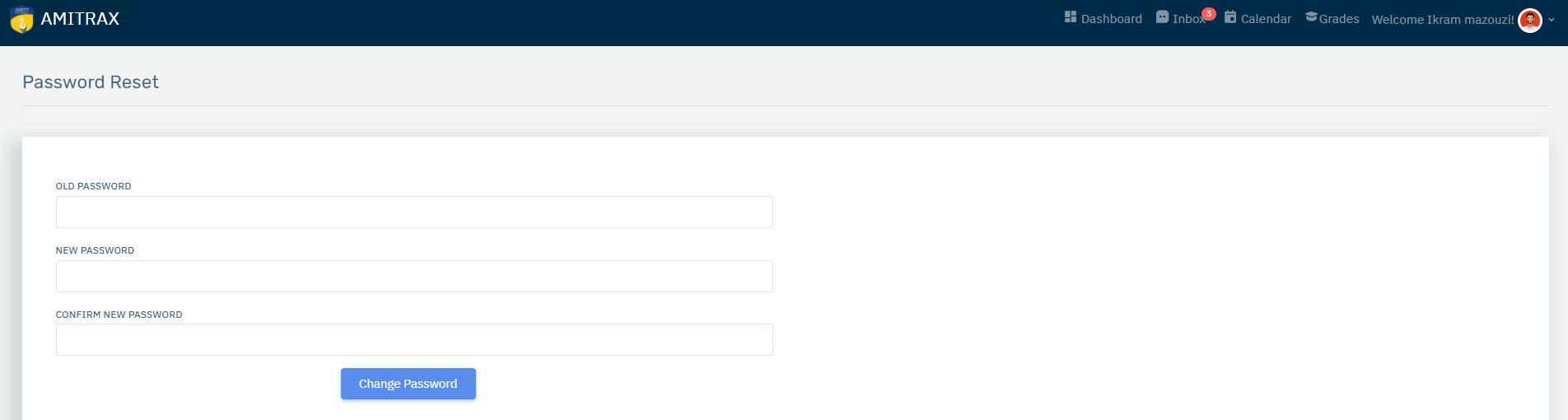
| Profile Settings - Passowrd Reset |
|
|
Logout - Click the "Logout" button to terminate your session, and please remember to log out to prevent unauthorized access. |
|